Friday, 31 August 2012

Android Wrap_content & Fill_parent Tutorial


In Android, you always put either “wrap_content” or “fill_parent” on component’s attribute “layout_width” and “layout_height“, did you wonder what’s the different?
See following definition :
  1. wrap_content – The component just want to display big enough to enclose its content only.
  2. fill_parent – The component want to display as big as its parent, and fill in the remaining spaces. (renamed match_parent in API Level 8)
Above terms may not make sense now, let see following demonstration :

1. wrap_content

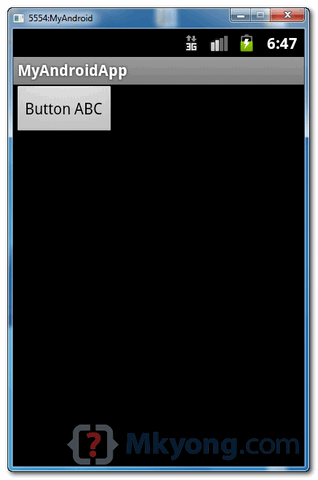
A button component, set “wrap_content” on both width and height attribute. It tell Android to display the button big enough to enclose it’s content “Button ABC” only.
<?xml version="1.0" encoding="utf-8"?>
<RelativeLayout xmlns:android="http://schemas.android.com/apk/res/android"
    android:layout_width="fill_parent"
    android:layout_height="fill_parent" >
 
    <Button
        android:id="@+id/btnButton1"
        android:layout_width="wrap_content"
        android:layout_height="wrap_content"
        android:text="Button ABC"/>
 
</RelativeLayout>
android wrap-content example1

2. fill_parent – width

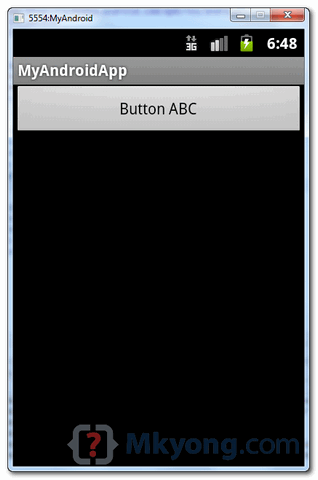
Change the “layout_width” to “fill_parent“, now, the button’s width will fill in the remaining spaces, just as big as it’s parent “RelativeLayout“, but button’s height is still big enough to enclose it’s content only.
<?xml version="1.0" encoding="utf-8"?>
<RelativeLayout xmlns:android="http://schemas.android.com/apk/res/android"
    android:layout_width="fill_parent"
    android:layout_height="fill_parent" >
 
    <Button
        android:id="@+id/btnButton1"
        android:layout_width="fill_parent"
        android:layout_height="wrap_content"
        android:text="Button ABC"/>
 
</RelativeLayout>
android wrap-content example2

3. fill_parent – height

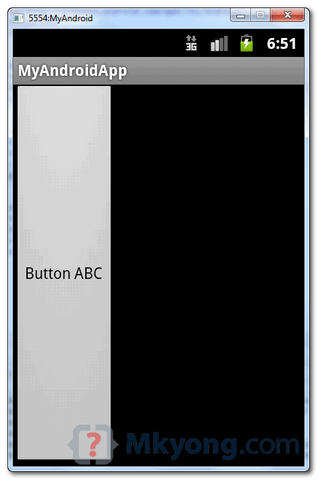
Change the “layout_height” to “fill_parent“, now, the button’s height will fill in the remaining spaces, just as big as it’s parent “RelativeLayout“, but button’s width is still big enough to enclose it’s content only.
<?xml version="1.0" encoding="utf-8"?>
<RelativeLayout xmlns:android="http://schemas.android.com/apk/res/android"
    android:layout_width="fill_parent"
    android:layout_height="fill_parent" >
 
    <Button
        android:id="@+id/btnButton1"
        android:layout_width="wrap_content"
        android:layout_height="fill_parent"
        android:text="Button ABC"/>
 
</RelativeLayout>
android wrap-content example3

4. fill_parent – width, height

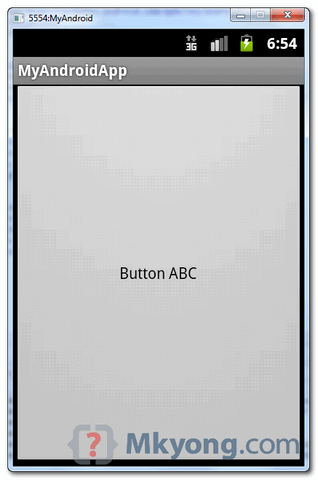
Change the both “layout_width” and “layout_height” to “fill_parent“, the button will display as big as the whole device screen, it just fill in the entire screen space.
<?xml version="1.0" encoding="utf-8"?>
<RelativeLayout xmlns:android="http://schemas.android.com/apk/res/android"
    android:layout_width="fill_parent"
    android:layout_height="fill_parent" >
 
    <Button
        android:id="@+id/btnButton1"
        android:layout_width="fill_parent"
        android:layout_height="fill_parent"
        android:text="Button ABC"/>
 
</RelativeLayout>
android wrap-content example4
Note
Actually, you can specifying an exact width and height, but it’s not recommended, due to Android variety of devices screen size. You just do not know what size of Android device is running your fantasy application.

References

  1. Android XML Layouts documentation
  2. Android ViewGroup.LayoutParams documentation

Tuesday, 24 July 2012

Android Activity Example


Activity Example

In Android, an activity is represent a single screen. Most applications have multiple activities to represent different screens, for example, one activity to display a list of the application settings, another activity to display the application status.
Note
Refer to this official Android activity article to understand more about Android activity.
In this tutorial, we show you how to interact with activity, when a button is clicked, navigate from current screen (current activity) to another screen (another activity).
P.S This project is developed in Eclipse 3.7, and tested with Android 2.3.3.

1. XML Layouts

Create following two XML layout files in “res/layout/” folder :
  1. res/layout/main.xml – Represent screen 1
  2. res/layout/main2.xml – Represent screen 2
File : res/layout/main.xml
<?xml version="1.0" encoding="utf-8"?>
<LinearLayout xmlns:android="http://schemas.android.com/apk/res/android"
    android:id="@+id/linearLayout1"
    android:layout_width="fill_parent"
    android:layout_height="fill_parent"
    android:orientation="vertical" >
 
    <TextView
        android:id="@+id/textView1"
        android:layout_width="wrap_content"
        android:layout_height="wrap_content"
        android:text="I&apos;m screen 1 (main.xml)"
        android:textAppearance="?android:attr/textAppearanceLarge" />
 
    <Button
        android:id="@+id/button1"
        android:layout_width="fill_parent"
        android:layout_height="wrap_content"
        android:text="Click me to another screen" />
 
</LinearLayout>
File : res/layout/main2.xml
<?xml version="1.0" encoding="utf-8"?>
<LinearLayout xmlns:android="http://schemas.android.com/apk/res/android"
    android:id="@+id/linearLayout1"
    android:layout_width="fill_parent"
    android:layout_height="fill_parent" >
 
    <TextView
        android:id="@+id/textView1"
        android:layout_width="wrap_content"
        android:layout_height="wrap_content"
        android:text="I&apos;m screen 2 (main2.xml)"
        android:textAppearance="?android:attr/textAppearanceLarge" />
 
</LinearLayout>

2. Activities

Create two activity classes :
  1. AppActivity.java –> main.xml
  2. App2Activity.java –> main2.xml
To navigate from one screen to another screen, use following code :
    Intent intent = new Intent(context, anotherActivity.class);
    startActivity(intent);
File : AppActivity.java
package com.mkyong.android;
 
import android.app.Activity;
import android.content.Context;
import android.content.Intent;
import android.os.Bundle;
import android.widget.Button;
import android.view.View;
import android.view.View.OnClickListener;
 
public class AppActivity extends Activity {
 
 Button button;
 
 @Override
 public void onCreate(Bundle savedInstanceState) {
  super.onCreate(savedInstanceState);
  setContentView(R.layout.main);
  addListenerOnButton();
 }
 
 public void addListenerOnButton() {
 
  final Context context = this;
 
  button = (Button) findViewById(R.id.button1);
 
  button.setOnClickListener(new OnClickListener() {
 
   @Override
   public void onClick(View arg0) {
 
       Intent intent = new Intent(context, App2Activity.class);
                            startActivity(intent);   
 
   }
 
  });
 
 }
 
}
File : App2Activity.java
package com.mkyong.android;
 
import android.app.Activity;
import android.os.Bundle;
import android.widget.Button;
 
public class App2Activity extends Activity {
 
 Button button;
 
 @Override
 public void onCreate(Bundle savedInstanceState) {
  super.onCreate(savedInstanceState);
  setContentView(R.layout.main2);
 }
 
}

3. AndroidManifest.Xml

Declares above two activity classes in AndroidManifest.xml.
File : AndroidManifest.xml
<?xml version="1.0" encoding="utf-8"?>
<manifest xmlns:android="http://schemas.android.com/apk/res/android"
    package="com.mkyong.android"
    android:versionCode="1"
    android:versionName="1.0" >
 
    <uses-sdk android:minSdkVersion="10" />
 
    <application
        android:icon="@drawable/ic_launcher"
        android:label="@string/app_name" >
        <activity
            android:label="@string/app_name"
            android:name=".AppActivity" >
            <intent-filter >
                <action android:name="android.intent.action.MAIN" />
                <category android:name="android.intent.category.LAUNCHER" />
            </intent-filter>
        </activity>
        <activity
            android:label="@string/app_name"
            android:name=".App2Activity" >
        </activity>
    </application>
 
</manifest>

4. Demo

Run application.
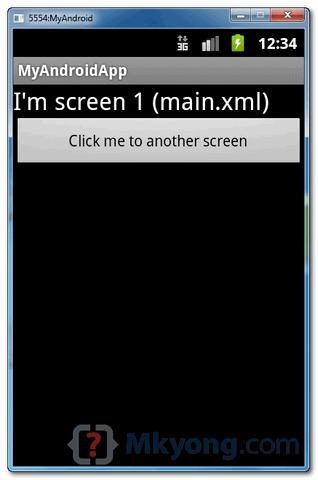
AppActivity.java (main.xml) screen is display.
android activity demo1
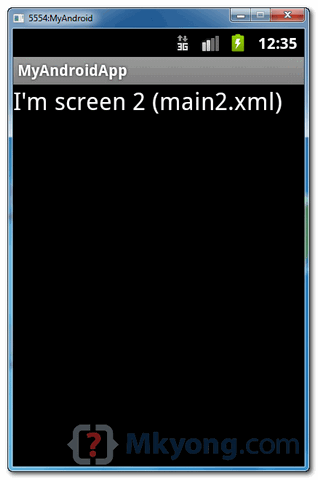
When above button is clicked, it will navigate to another screen App2Activity.java (main2.xml).
android activity demo2

Download Source Code

References

  1. Android activities example

Monday, 23 July 2012

Android Toast Example

Toast Example

In Android, Toast is a notification message that pop up, display a certain amount of time, and automtaically fades in and out, most people just use it for debugging purpose.
Code snippets to create a Toast message :
//display in short period of time
Toast.makeText(getApplicationContext(), "msg msg", Toast.LENGTH_SHORT).show();
 
//display in long period of time
Toast.makeText(getApplicationContext(), "msg msg", Toast.LENGTH_LONG).show();
In this tutorial, we will show you two Toast examples :
  1. Normal Toast view.
  2. Custom Toast view.
P.S This project is developed in Eclipse 3.7, and tested with Android 2.3.3.

1. Normal Toast View

Simple Toast example.
File : res/layout/main.xml
<?xml version="1.0" encoding="utf-8"?>
<LinearLayout xmlns:android="http://schemas.android.com/apk/res/android"
    android:layout_width="fill_parent"
    android:layout_height="fill_parent"
    android:orientation="vertical" >
 
    <Button
        android:id="@+id/buttonToast"
        android:layout_width="wrap_content"
        android:layout_height="wrap_content"
        android:text="Show Toast" />
 
</LinearLayout>
File : MainActivity.java
package com.mkyong.android;
 
import android.app.Activity;
import android.os.Bundle;
import android.view.View;
import android.view.View.OnClickListener;
import android.widget.Button;
import android.widget.Toast;
 
public class MainActivity extends Activity {
 
 private Button button;
 
 public void onCreate(Bundle savedInstanceState) {
 
  super.onCreate(savedInstanceState);
  setContentView(R.layout.main);
 
  button = (Button) findViewById(R.id.buttonToast);
 
  button.setOnClickListener(new OnClickListener() {
 
     @Override
     public void onClick(View arg0) {
 
        Toast.makeText(getApplicationContext(), 
                               "Button is clicked", Toast.LENGTH_LONG).show();
 
     }
  });
 }
}
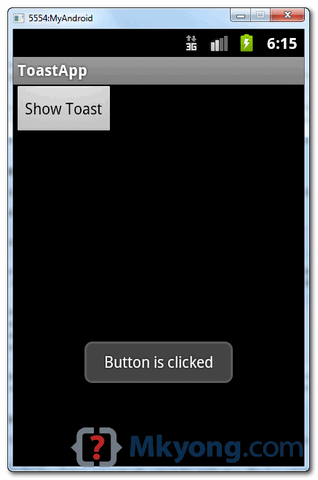
See demo, when a button is clicked, display a normal Toast message.
android toast example

2. Custom Toast View

Enchance above example by customize the original Toast view.
File : res/layout/custom_toast.xml – This is the custom Toast view.
<?xml version="1.0" encoding="utf-8"?>
<LinearLayout xmlns:android="http://schemas.android.com/apk/res/android"
    android:id="@+id/custom_toast_layout_id"
    android:layout_width="fill_parent"
    android:layout_height="fill_parent"
    android:background="#FFF"
    android:orientation="horizontal"
    android:padding="5dp" >
 
    <ImageView
        android:id="@+id/image"
        android:layout_width="wrap_content"
        android:layout_height="fill_parent"
        android:layout_marginRight="5dp" />
 
    <TextView
        android:id="@+id/text"
        android:layout_width="wrap_content"
        android:layout_height="fill_parent"
        android:textColor="#000" />
 
</LinearLayout>
File : MainActivity.java – Read comment, to get above custom view and attach to Toast.
package com.mkyong.android;
 
import android.app.Activity;
import android.os.Bundle;
import android.view.Gravity;
import android.view.LayoutInflater;
import android.view.View;
import android.view.View.OnClickListener;
import android.view.ViewGroup;
import android.widget.Button;
import android.widget.ImageView;
import android.widget.TextView;
import android.widget.Toast;
 
public class MainActivity extends Activity {
 
 private Button button;
 
 public void onCreate(Bundle savedInstanceState) {
 
  super.onCreate(savedInstanceState);
  setContentView(R.layout.main);
 
  button = (Button) findViewById(R.id.buttonToast);
 
  button.setOnClickListener(new OnClickListener() {
 
   @Override
   public void onClick(View arg0) {
 
    // get your custom_toast.xml ayout
    LayoutInflater inflater = getLayoutInflater();
 
    View layout = inflater.inflate(R.layout.custom_toast,
      (ViewGroup) findViewById(R.id.custom_toast_layout_id));
 
    // set a dummy image
    ImageView image = (ImageView) layout.findViewById(R.id.image);
    image.setImageResource(R.drawable.ic_launcher);
 
    // set a message
    TextView text = (TextView) layout.findViewById(R.id.text);
    text.setText("Button is clicked!");
 
    // Toast...
    Toast toast = new Toast(getApplicationContext());
    toast.setGravity(Gravity.CENTER_VERTICAL, 0, 0);
    toast.setDuration(Toast.LENGTH_LONG);
    toast.setView(layout);
    toast.show();
   }
  });
 }
}
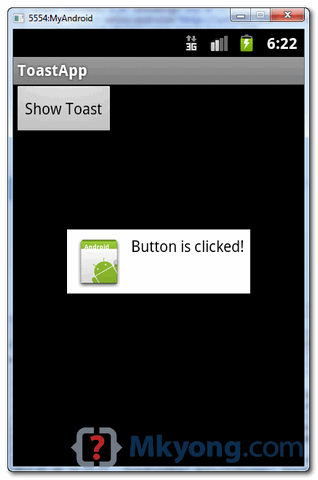
See demo, when a button is clicked, display the custom Toast message.
Android Toast example

Download Source Code

Download it – Android-Toast-Example.zip (16 KB)

References

  1. Android Toast example
  2. Android Toast JavaDoc

Friday, 20 July 2012

Android Explicit Intent Tutorial

Explicit Intent Tutorial


In an explicit intent, we actually specify the activity that is required to respond to the intent. In other words, we explicitly designate the target component. This is typically used for application internal messages. The code of this post can be found at end.
In an implicit intent, the main power of the android design, we just declare an intent and leave it to the platform to find an activity that can respond to the intent. Here, we do not declare the target component and hence is typically used for activating components of other applications seamlessly
Let’s look at our example:
This example has 2 activities:
  • InvokingActivity
  • InvokedActivity
The InvokingActivity has a button “Invoke Next Activity” which when clicked explicitly calls theInvokedActivity class. The relevant part of the code is here:
Button invokingButton = (Button)findViewById(R.id.invokebutton);
invokingButton.setOnClickListener(new OnClickListener() {
public void onClick(View v) {
Intent explicitIntent = new Intent(InvokingActivity.this,InvokedActivity.class);
startActivity(explicitIntent);
}
});
The layout for InvokingActivity is defined in /res/main.xml:
and for InvokedActivity in /res/invokedactivity.xml.
Here are our java code, InvokingActivity.java:
package com.bogotobogo.explicitintent;
import android.app.Activity;
import android.content.Intent;
import android.os.Bundle;
import android.view.View;
import android.view.View.OnClickListener;
import android.widget.Button;
public class InvokingActivity extends Activity {
@Override
public void onCreate(Bundle savedInstanceState) {
super.onCreate(savedInstanceState);
setContentView(R.layout.main);
Button invokingButton = (Button)findViewById(R.id.invokebutton);
invokingButton.setOnClickListener(new OnClickListener() {
public void onClick(View v) {
Intent explicitIntent = new Intent(InvokingActivity.this,InvokedActivity.class);
startActivity(explicitIntent);
}
});
}
}
and InvokedActivity.java:
package com.bogotobogo.explicitintent;
import android.app.Activity;
import android.os.Bundle;
public class InvokedActivity extends Activity {
@Override
public void onCreate(Bundle savedInstanceState) {
super.onCreate(savedInstanceState);
setContentView(R.layout.invokedactivity);
}
}
In the next section, we will see how to work with implicit intents which also needs us to understand intent-filters.

Android Implicit Intent Tutorial


 Implicit Intent Tutorial

we will move on to a more interesting concept of Implicit Intents and Intent Filters. The code of this post can be found at end.
As described earlier, an implicit intent does not name a target component that should act upon the intent. Android resolves as to which component is best suited to respond to anImplicit Intent. How does this happen?
Basically, an Intent object has the following information (among other things like Component name, extras and flags) which is of interest for implicit intents:
  • Action
  • Category
  • Data
So, Android compares the three (action, category and data) to something called Intent Filtersthat are declared by probable target components who are willing to accept Implicit Intent calls. i.e. Intent Filters are the way of any component to advertise its own capabilities to the Android system. This is done declaratively in the AndroidManifest.xml file.
So here are some important points to remember:
  1. Implicit Intents do not specify a target component.
  2. Components willing to receive implicit intents have to declare their ability to handle a specific intent by declaring intent filters.
  3. A component can declare any number of Intent Filters.
  4. There can be more than one component that declares the same Intent Filters and hence can respond to the same implicit intent. In that case, the user is presented both the component options and he can choose which one he wants to continue with.
  5. We can set priorities for the intent filters to ensure the order of responses.
There are 3 tests conducted in order to match an intent with intent filters:
  1. Action Test
  2. Category Test
  3. Data Test
Finally, we’ll look at declaring an implicit intent in one activity which will invoke one of the native activities of the platform by matching the intent filters declared by the same.
The ImplicitIntent Activity creates an implicit intent object contacts. This intent object’s component is not set. However, the action is set to android.content.intent.ACTION_VIEWand the data’s URI is set to People.CONTENT_URI.
Such an intent matches with the intent filter declared by the view contacts native activity.
So, when we run this application, it displays the native UI for viewing the existing contacts on the phone!
Here is the relevant piece of code for the same:
Button viewContacts = (Button)findViewById(R.id.ViewContacts);
viewContacts.setOnClickListener(new OnClickListener() {
public void onClick(View v) {
Intent contacts = new Intent();
contacts.setAction(android.content.Intent.ACTION_VIEW);
contacts.setData(People.CONTENT_URI);
startActivity(contacts);
}
});
In this manner many of the native applications can be seamlessly invoked as one of the activities in our applications through implicit intents.
Here are our Java code, ImplicitIntent.java:
package com.bogotobogo.implicitintent;
import android.app.Activity;
import android.content.ActivityNotFoundException;
import android.content.Intent;
import android.os.Bundle;
import android.provider.Contacts.People;
import android.util.Log;
import android.view.View;
import android.view.View.OnClickListener;
import android.widget.Button;
public class ImplicitIntent extends Activity {
/** Called when the activity is first created. */
@Override
public void onCreate(Bundle savedInstanceState) {
super.onCreate(savedInstanceState);
setContentView(R.layout.main);
ViewContacts();
}
private void ViewContacts() {
try {
Button viewContacts = (Button)findViewById(R.id.ViewContacts);
viewContacts.setOnClickListener(new OnClickListener() {
public void onClick(View v) {
Intent contacts = new Intent();
contacts.setAction(android.content.Intent.ACTION_VIEW);
contacts.setData(People.CONTENT_URI);
startActivity(contacts);
}
});
}catch (ActivityNotFoundException anfe) {
Log.e(“ViewContacts”,”Viewing of Contacts failed”, anfe);
}
}
}

Create a new Project named MoveScreen.

Explore the project. In res/layout main.xml file is created during the project creation. Say main.xml file is for first screen and we need another xml file for second screen. Now we create another xml file named secondscreen.xml(lowercase letter only).  right click on layout layout>New>Other…
select Android XML File and click next
Give a name (for example) secondscreen.xml (lowercase letter only) and click Finish button.
Double click on secondscreen.xml file from the Package Explorer and click on layout tab. Add one TextView and a Button like bellow
Switch to “secondscreen.xml” and verify that your XML looks like the following.
<?xml version=“1.0″ encoding=“utf-8″?>
<LinearLayout  xmlns:android=“http://schemas.android.com/apk/res/android”
android:layout_width=“wrap_content”
android:layout_height=“wrap_content”
android:orientation=“vertical”>
<TextView android:id=“@+id/TextView01″ android:layout_width=“wrap_content”android:layout_height=“wrap_content” android:text=“SecondScreen”></TextView>
<Button android:id=“@+id/Button01″ android:layout_width=“wrap_content”android:layout_height=“wrap_content” android:text=“PreviousScreen”></Button>
</LinearLayout>
In the same way add a TextView and a Button within main.xml file.
Switch to “main.xml” and verify that your XML looks like the following.
<?xml version=“1.0″ encoding=“utf-8″?>
<LinearLayout xmlns:android=“http://schemas.android.com/apk/res/android”
android:orientation=“vertical”
android:layout_width=“fill_parent”
android:layout_height=“fill_parent” >
<TextView   android:layout_width=“fill_parent” android:layout_height=“wrap_content”android:text=“First Screen”/>
<Button android:id=“@+id/Button01″ android:layout_width=“wrap_content”android:layout_height=“wrap_content” android:text=“NextScreen”>
</Button></LinearLayout>
To move screen we use the intent like the following
Intent back = new Intent(SecondActivity.this,MoveScreen.class);
startActivity(back);
Our default class is MoveScreen class. It is created during the project creation.
MoveScreen.java:
package com.droidbd.movescreen;
import android.app.Activity;
import android.content.Intent;
import android.os.Bundle;
import android.view.View;
import android.view.View.OnClickListener;
import android.widget.Button;
public class MoveScreen extends Activity {
/** Called when the activity is first created. */
private Button next;
@Override
public void onCreate(Bundle savedInstanceState) {
super.onCreate(savedInstanceState);
setContentView(R.layout.main);
next = (Button)findViewById(R.id.Button01);
next.setOnClickListener(new OnClickListener() {
public void onClick(View v) {
// TODO Auto-generated method stub
Intent i = new Intent(MoveScreen.this,SecondActivity.class);
startActivity(i);
}
});
}
}
Now we create an Activity class for second screen to handle secondscreen.xml file.The class name is SecondActivity.java
SecondActivity.java
package com.droidbd.movescreen;
import android.app.Activity;
import android.content.Intent;
import android.os.Bundle;
import android.view.View;
import android.view.View.OnClickListener;
import android.widget.Button;
public class SecondActivity extends Activity{
private Button previousBtn;
@Override
public void onCreate(Bundle savedInstanceState) {
super.onCreate(savedInstanceState);
setContentView(R.layout.secondscreen);
previousBtn = (Button)findViewById(R.id.Button01);
previousBtn.setOnClickListener(new OnClickListener() {
public void onClick(View v) {
// TODO Auto-generated method stub
Intent back = new Intent(SecondActivity.this,MoveScreen.class);
startActivity(back);
}
});
}
}
All Android components that wish to be notified via intents should declare intent filters so that Android knows which intents should go to that component. So, we need to add intent-filter elements to our AndroidManifest.xml file.
Here we have created SecondActivity.java class.
We need to add the following lines to AndroidManifest.xml.
<activity android:name=“SecondActivity”></activity>
So, the manifest file should look like this:
AndroidManifest.xml
<?xml version=“1.0″ encoding=“utf-8″?>
<manifest xmlns:android=“http://schemas.android.com/apk/res/android”
package=“com.droidbd.movescreen”
android:versionCode=“1″
android:versionName=“1.0″>
<application android:icon=“@drawable/icon” android:label=“@string/app_name”>
<activity android:name=“.MoveScreen”
android:label=“@string/app_name”>
<intent-filter>
<action android:name=“android.intent.action.MAIN” />
<category android:name=“android.intent.category.LAUNCHER” />
</intent-filter>
</activity>
<activity android:name=“SecondActivity”></activity>
</application>
<uses-sdk android:minSdkVersion=“4″ />
</manifest>
Run
Run your application.You will see the following output.
Click on NextScreen button to see the next screen.
Click on PreviousScreen button to see the first screen.