Friday, 20 July 2012

Currency Converter in Android


Currency Converter Application for Android


           This tutorial will give you a brief introduction to developing a GUI application on Android. This tutorial assumes that you have downloaded and installed the Android SDK. This tutorial also assumes that you are reasonably familiar with concepts in GUI programming and the Java programming language. The complete project can be found at end of post
Step One:
In Eclipse create a new android project as CurrencyConverter. Open the contents ofres/layout/main.xml.Delete everything except  <?xml version=“1.0″ encoding=“utf-8″?>    from the main.xml file.
Step Two:
Select the “Graphical Layouts” tab.
Step Three:
Drag and drop a Relative Layout object from the Layouts panel into the screen and click on the screen. You will see the following things:
Step Four:
Drag and drop a Linear Layout object from the Layouts panel into the screen top border line .
Step Five:
Select the Linear Layout object and click on the properties tab to begin editing the layout properties. Change the width to “200px” and the height to “280px”and Orientation as vertical.
Step Six:
Drag and drop two TextView objects and two EditText objects into the LinearLayout so that they alternate
Step Seven:
Edit the properties of each TextView object. Make text for the upper one read “Dollars” and make its style “bold”. Make the lower one read: “Euros” and make its style bold also.
Step Eight:
Edit the properties of the upper EditText as follows:
  • Change the id to read: “@+id/dollars”
  • Change the text to be empty
  • Change the width to be “100px”.
  • Change the height to be “50px”
  • Add lines as “1”
Step Nine:
  • Repeat step Eight with the second EditText under the “Euros” TextView, but make the id be “@+id/euros”
Step Ten:
Drag and drop a RadioGroup object into the LinearLayout. Drag and drop two RadioButton objects into the RadioGroup.
Step Eleven:
Edit the first RadioButton so that its text reads: “Dollars to Euros” and its id is “@+id/dtoe”.
Edit the second RadioButton so that its text reads: “Euros to Dollars” and its id is “@+id/etod”.
Step Twelve:
Drag and drop a Button object into the root RelativeLayout below the LinearLayout object. It should align with the right edge of the LinearLayout.
Important Note:
You must get the ids exactly correct, because this is how you will look up the widgets in source code.
Step Thirteen:
The  main.xml file will look something like this.
<?xml version=“1.0″ encoding=“utf-8″?>
<RelativeLayout android:id=“@+id/RelativeLayout01″
android:layout_width=“fill_parent” android:layout_height=“fill_parent”
xmlns:android=“http://schemas.android.com/apk/res/android”>
<LinearLayout android:layout_alignParentTop=“true” android:layout_width=“200px”android:orientation=“vertical” android:layout_height=“280px”android:id=“@+id/linearlayoutId”><TextView android:id=“@+id/TextView01″android:layout_width=“wrap_content” android:layout_height=“wrap_content”android:text=“Dollars” android:textStyle=“bold”></TextView>
<EditText android:layout_width=“100px” android:layout_height=“50px”android:id=“@+id/dollars” android:lines=“1″></EditText>
<TextView android:id=“@+id/TextView02″ android:layout_width=“wrap_content”android:layout_height=“wrap_content” android:text=“Euros” android:textStyle=“bold”></TextView>
<EditText android:lines=“1″ android:layout_height=“50px” android:layout_width=“100px”android:id=“@+id/euros”></EditText>
<RadioGroup android:id=“@+id/RadioGroup01″ android:layout_width=“wrap_content”android:layout_height=“wrap_content”><RadioButton android:layout_width=“wrap_content”android:layout_height=“wrap_content” android:text=“Dollars to Euros”android:id=“@+id/dtoe”></RadioButton><RadioButton android:layout_width=“wrap_content”android:layout_height=“wrap_content” android:text=“Euros to Dollars”android:id=“@+id/etod”></RadioButton>
</RadioGroup>
</LinearLayout>
<Button android:layout_height=“wrap_content” android:layout_width=“wrap_content”android:layout_below=“@+id/linearlayoutId” android:layout_alignRight=“@+id/linearlayoutId”android:text=“Convert” android:id=“@+id/convert”></Button>
</RelativeLayout>
Step Fourteen:
At this point you should be able to run your GUI in Android. It should look something like this:
Step Fifteen:
The last step is to actually code the currency conversion. There’s not much to it, you can look up your GUI elements with:
this.findViewById(R.id.<id>).
Here is the complete code for the CurrencyConverter activity:
package com.droidbd.currencyconverter;
import android.app.Activity;
import android.os.Bundle;
import android.view.View;
import android.view.View.OnClickListener;
import android.widget.Button;
import android.widget.EditText;
import android.widget.RadioButton;
public class CurrencyConverter extends Activity implements OnClickListener {
/** Called when the activity is first created. */
EditText dollars;
EditText euros;
RadioButton dtoe;
RadioButton etod;
Button convert;
@Override
public void onCreate(Bundle savedInstanceState) {
super.onCreate(savedInstanceState);
setContentView(R.layout.main);
dollars = (EditText)findViewById(R.id.dollars);
euros = (EditText)findViewById(R.id.euros);
dtoe = (RadioButton)this.findViewById(R.id.dtoe);
dtoe.setChecked(true);
etod = (RadioButton)this.findViewById(R.id.etod);
convert = (Button)this.findViewById(R.id.convert);
convert.setOnClickListener(this);
}
@Override
public void onClick(View arg0) {
// TODO Auto-generated method stub
if (dtoe.isChecked()) {
convertDollarsToEuros();
}
if (etod.isChecked()) {
convertEurosToDollars();
}
}
protected void convertEurosToDollars() {
// TODO Auto-generated method stub
double val = Double.parseDouble(euros.getText().toString());
// in a real app, we’d get this off the ‘net
dollars.setText(Double.toString(val/0.67));
}
protected void convertDollarsToEuros() {
// TODO Auto-generated method stub
double val = Double.parseDouble(dollars.getText().toString());
// in a real app, we’d get this off the ‘net
euros.setText(Double.toString(val*0.67));
}
}
           

                                                        Thank you


Monday, 16 July 2012

Android Fundamental's

Basic Fundamental's of Android

The fundamental building blocks / components of Android are:


1. Activities

2. Services

3. Broadcast Receivers

4. Content Providers.


The means of communication between the above mentioned components is through 


1. Intents

2. Intent Filters


The User Interface elements are by using what are called:


1. Views

2. Notifications

Now, having broadly classified the basics, I would like to give a simple definition for each of them, before we can appreciate the need for each of them.

Activity is the basic building block of every visible android application. It provides the means to render a UI. Every screen in an application is an activity by itself. Though they work together to present an application sequence, each activity is an independent entity.

Service is another building block of android applications which does not provide a UI. It is a program that can run in the background for an indefinite period.

Broadcast Receiver is yet another type of component that can receive and respond to any broadcast announcements. 

Content Providers are a separate league of components that expose a specific set of data to applications.

While the understanding and knowledge of these four components is good enough to start development, the knowledge of the means of communication between the components is also essential. The platform designers have introduced a new conpect of communication through intents and intent filters.

Intents are messages that are passed between components. So, is it equivalent to parameters passed to API calls? Yes, it is close to that. However, the fundamental differences between API calls and intents' way of invoking components is

1. API calls are synchronous while intent-based invocation is asynchronous (mostly)
2. API calls are bound at compile time while intent-based calls are run-time bound (mostly)

It is these two differences that take Android platform to a different league. 

There are 2 types of intents:

1. Explicit Intent

2. Implicit Intent

In an Explicit intent, you actually specify the activity that is required to respond to the intent. In other words, you explicitly designate the target component. This is typically used for application internal messages.

In an Implicit intent (the main power of the android design), you just declare an intent and leave it to the platform to find an activity that can respond to the intent. Here, you do not declare the target component and hence is typically used for activating components of other applications seamlessly

Note: Here for simplicity sake I tell an activity responds to an intent, it could as well be other types of components.
Now I will jump into the example which you can download from here:
This example has 2 activities:

1. InvokingActivity

2. InvokedActivity

The InvokingActivity has a button "Invoke Next Activity" which when clicked explicitly calls the "InvokedActivity" class.
The relevant part of the code is here:

        Button invokingButton = (Button)findViewById(R.id.invokebutton);
        invokingButton.setOnClickListener(new OnClickListener() {
        
         public void onClick(View v) {
         Intent explicitIntent = new Intent(InvokingActivity.this,InvokedActivity.class);
         startActivity(explicitIntent);
         }
        });

As explained in part 1 of the series, this is very much like an API call with compile time binding.


NOTE: The layout for InvokingActivity is defined in main.xml and for InvokedActivity in InvokedActivity.xml. The downloadable example can be opened in Eclipse Ganymede as an android project and can be executed.

Now, we will move on to a more interesting concept of Implicit Intents and Intent Filters. 

This requires a little of theoretical understanding before we move on to an example. 

As described earlier, an implicit intent does not name a target component that should act upon the intent. I 
also said that the android platform resolves as to which component is best suited to respond to an Implicit Intent. How does this happen?

Basically, an Intent object has the following information (among other things like Component name, extras and flags) which is of interest for implicit intents:

  • Action 
  • Category 
  • Data 
So, the android platform compares these 3 (action, category and data) to something called "Intent Filters" that are declared by probable target components who are willing to accept Implicit Intent calls.
i.e. Intent Filters are the way of any component to advertise its own capabilities to the Android system. This is done declaratively in the AndroidManifest.xml file.

So here are some important points to remember:
  1. Implicit Intents do not specify a target component 
  2. Components willing to receive implicit intents have to declare their ability to handle a specific intent by declaring intent filters 
  3. A component can declare any number of Intent Filters 
  4. There can be more than one component that declares the same Intent Filters and hence can respond to the same implicit intent. In that case the user is presented both the component options and he can choose which one he wants to continue with 
  5. You can set priorities for the intent filters to ensure the order of responses. 
There are 3 tests conducted in order to match an intent with intent filters:

  1. Action Test 
  2. Category Test 
  3. Data Test 
For more details about them, you may visit the Android developer documentation here.

Finally we shall look at declaring an implicit intent in one activity which will invoke one of the native activities of the platform by matching the intent filters declared by the same.

The complete code for a very simple implicit intent example that has been described in this article is available for download here.

The InvokeImplicitIntent Activity creates an implicit intent object "contacts". This intent object's component is not set. However, the action is set to "android.content.intent.ACTION_VIEW" and the data's URI is set to "People.CONTENT_URI". 

Such an intent matches with the intent filter declared by the view contacts native activity.
So, when you run this application, it displays the native UI for viewing the existing contacts on the phone.


Here is the relevant piece of code for the same:

           Button viewContacts = (Button)findViewById(R.id.ViewContacts);
        
            viewContacts.setOnClickListener(new OnClickListener() {
            
             public void onClick(View v) {
              Intent contacts = new Intent();
              contacts.setAction(android.content.Intent.ACTION_VIEW);
              contacts.setData(People.CONTENT_URI);
              startActivity(contacts);
             }
            });

In this manner many of the native applications can be seamlessly invoked as one of the activities in our applications through implicit intents.

---------------------------------------------------------------------------------------------------------

The above example uses Android SDK 1.5.
From SDK 1.6 and above, the Contact.People class has been deprecated and we need to use the ContactsContract class. So the line in code

       contacts.setData(People.CONTENT_URI);

has to be replaced by 

       contacts.setData(ContactsContract.Contacts.CONTENT_URI);
Here is the complete source code that has been tested with Android SDK 2.1 

Android Hello World Example


Hello World Program
In this tutorial, we show you how to create a simple “hello world” Android project in Eclipse IDE + ADT plugin, and run it with Android Virtual Device (AVD). The Eclipse ADT plugin provided easy Android project creation and management, components drag and drop, auto-complete and many useful features to speed up your Android development cycles.

Summary steps to develop an Android application :


  1. Install Android SDK
  2. Install ADT Eclipse plugin
  3. Create an Android Virtual Device (AVD)
  4. Create Android Project with Eclipse (Wizard)
  5. Code it…
  6. Start it in Android Virtual Device (AVD)

Tools used in this tutorial :


  1. JDK 1.6
  2. Eclipse IDE 3.7 , Indigo
  3. Android SDK

1. Install Android SDK

Visit this Android SDK page, choose which platform and install it.
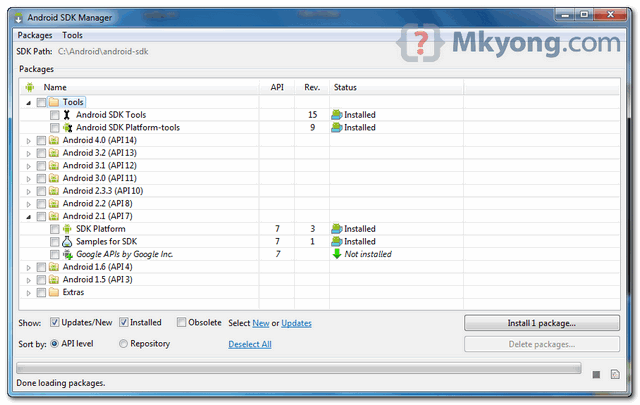
In Android SDK installed folder, run “Android SDK manager”, choose what Android version you want to develop.
android sdk manager

2. Install ADT Eclipse Plugin

To integrate Android SDK with Eclipse IDE, you need to install Eclipse ADT plugin. Refer to this official guide – “Installing the ADT Plugin“.
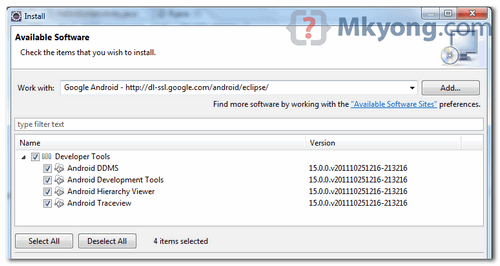
In Eclipse IDE, select “Help” -> Install New Software…”, and put below URL :
https://dl-ssl.google.com/android/eclipse/
android ADT plugin
Note
In my case, above ADT plugin is taking years to download, no idea why. If you are facing the similar problem, just download and install the ADT plugin manually, refer to this ADT plugin troubleshooting guide.

3. Create An Android Virtual Device (AVD)

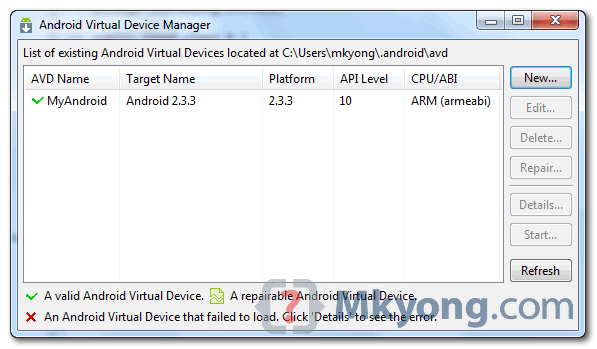
In Eclipse, you can access the “Android Virtual Device (AVD)” in Eclipse toolbar. Click “new” to create a AVD.
android avd manager
Later, Eclipse will deploy the application into this AVD.

4. Create Android Project

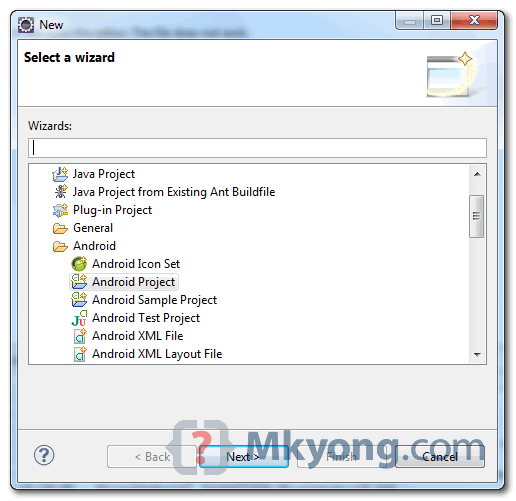
In Eclipse, select “File -> New -> Project….”, “Android Project”, and input your application detail. Eclipse will create all the necessary Android project files and configuration.
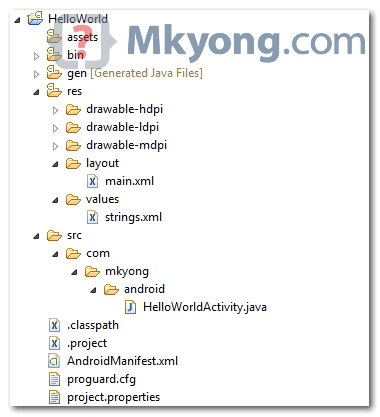
Eclipse new android project wizard
folder structure

5. Hello World

Locate the generated activity file, and modify a bit to output a string “Hello World”.
File : HelloWorldActivity.java
package com.mkyong.android;
 
import android.app.Activity;
import android.os.Bundle;
import android.widget.TextView;
 
public class HelloWorldActivity extends Activity {
    /** Called when the activity is first created. */
    @Override
    public void onCreate(Bundle savedInstanceState) {
        super.onCreate(savedInstanceState);
 
        TextView text = new TextView(this);
        text.setText("Hello World, Android - mkyong.com");
        setContentView(text);
    }
}

6. Output

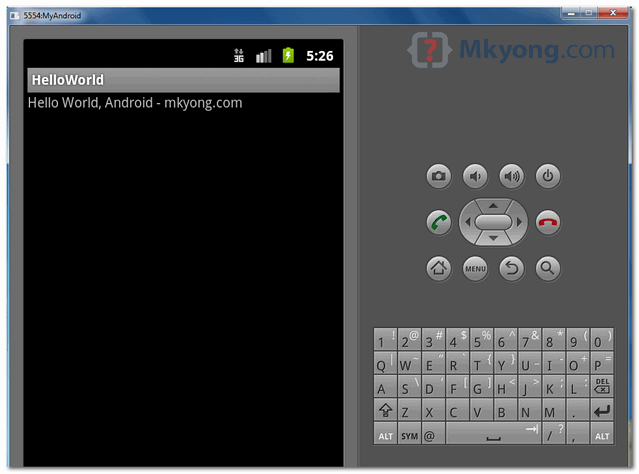
Run it as “Android Application“, see output.
hello world output
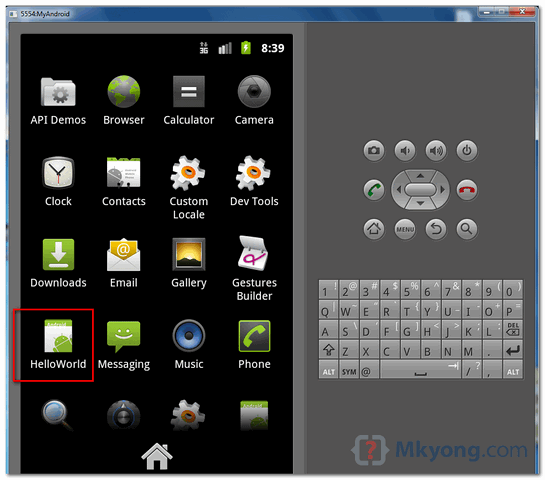
Press “Home” button (on right hand side), and you will noticed that “HelloWorld” application is deployed successfully on the Android virtual device.
android deployed

Download Source Code

Download it – Android-HelloWorld.zip (15 KB)

References

  1. Android Developers

Interview Question's


Android Interview Questions and Answer 


What is Android?
Android is a stack of software for mobile devices which includes an Operating System, middleware and some key applications. The application executes within its own process and its own instance of Dalvik Virtual Machine. Many Virtual Machines run efficiently by a DVM device. DVM executes Java languages byte code which later transforms into .dex format files.

What is an Activity?
A single screen in an application, with supporting Java code.

What is an Intent?
A class (Intent) which describes what a caller desires to do. The caller will send this intent to Android's intent resolver, which finds the most suitable activity for the intent. E.g. opening a PDF document is an intent, and the Adobe Reader apps will be the perfect activity for that intent (class).

What is a Sticky Intent?
sendStickyBroadcast() performs a sendBroadcast(Intent) known as sticky, i.e. the Intent you are sending stays around after the broadcast is complete, so that others can quickly retrieve that data through the return value of registerReceiver(BroadcastReceiver, IntentFilter). In all other ways, this behaves the same as sendBroadcast(Intent). One example of a sticky broadcast sent via the operating system is ACTION_BATTERY_CHANGED. When you call registerReceiver() for that action -- even with a null BroadcastReceiver -- you get the Intent that was last broadcast for that action. Hence, you can use this to find the state of the battery without necessarily registering for all future state changes in the battery.

How the nine-patch Image different from a regular bitmap? Alternatively, what is the difference between nine-patch Image vs regular Bitmap Image?
It is one of a resizable bitmap resource which is being used as backgrounds or other images on the device. The NinePatch class allows drawing a bitmap in nine sections. The four corners are unscaled; the middle of the image is scaled in both axes, the four edges are scaled into one axis.

What is a resource?
A user defined JSON, XML, bitmap, or other file, injected into the application build process, which can later be loaded from code.

How will you record a phone call in Android? or How to handle an Audio Stream for a call in Android?
Permission.PROCESS_OUTGOING_CALLS: Will Allow an application to monitor, modify, or abort outgoing calls. So using that permission we can monitor the Phone calls.

Does Android support the Bluetooth serial port profile?
Yes.

Can an application be started on powerup?
Yes.  

What is the APK format?
The APK file is compressed AndroidManifest.xml file with extension .apk. It also includes the application code (.dex files), resource files, and other files which are compressed into a single .apk file.

How to Translate in Android?
The Google translator translates the data of one language into another language by using XMPP to transmit data. You can type the message in English and select the language which is understood by the citizens of the country in order to reach the message to the citizens.

Describe Briefly the Android Application Architecture
Android Application Architecture has the following components:

  • Services like Network Operation
    Intent - To perform inter-communication between activities or services
  • Resource Externalization - such as strings and graphics
    Notification signaling users - light, sound, icon, notification, dialog etc.
  • Content Providers - They share data between applications

What is needed to make a multiple choice list with a custom view for each row?
Multiple choice list can be viewed by making the CheckBox android:id value be “@android:id /text1". That is the ID used by Android for the CheckedTextView in simple_list_item_multiple_choice.

What dialog boxes are supported in android?Android supports 4 dialog boxes:

  • AlertDialog: An alert dialog box supports 0 to 3 buttons and a list of selectable elements, including check boxes and radio buttons. Among the other dialog boxes, the most suggested dialog box is the alert dialog box.
  • ProgressDialog: This dialog box displays a progress wheel or a progress bar. It is an extension of AlertDialog and supports adding buttons.
  • DatePickerDialog: This dialog box is used for selecting a date by the user.
  • TimePickerDialog: This dialog box is used for selecting time by the user.

What’s the difference between file, class and activity in android? 

File – It is a block of arbitrary information, or resource for storing information. It can be of any type.
Class – Its a compiled form of .Java file . Android finally used this .class files to produce an executable apk
Activity – An activity is the equivalent of a Frame/Window in GUI toolkits. It is not a file or a file type it is just a class that can be extended in Android for loading UI elements on view.

What is a Sticky Intent?

sendStickyBroadcast() performs a sendBroadcast (Intent) that is “sticky,” i.e. the Intent you are sending stays around after the broadcast is complete, so that others can quickly retrieve that data through the return value of registerReceiver (BroadcastReceiver, IntentFilter). In all other ways, this behaves the same as sendBroadcast(Intent).
One example of a sticky broadcast sent via the operating system is ACTION_BATTERY_CHANGED. When you call registerReceiver() for that action — even with a null BroadcastReceiver — you get the Intent that was last broadcast for that action. Hence, you can use this to find the state of the battery without necessarily registering for all future state changes in the battery.

Does Android support the Bluetooth serial port profile?

Yes.
Can an application be started on powerup?

Yes.
How to Remove Desktop icons and Widgets ?

A. Press and Hold the icon or widget. The phone will vibrate and on the bottom of the phone you will see anoption to remove. While still holding the icon or widget drag it to the remove button. Once remove turns red drop the item and it is gone

Describe a real time scenario where android can be used?

Imagine a situation that you are in a country where no one understands the language you speak and you can not read or write. However, you have mobile phone with you.
With a mobile phone with android, the Google translator translates the data of one language into another language by using XMPP to transmit data. You can type the message in English and select the language which is understood by the citizens of the country in order to reach the message to the citizens.

How to select more than one option from list in android xml file?

Give an example.
Specify android id, layout height and width as depicted in the following example.

What languages does Android support for application development?

Android applications are written using the Java programming language.

Describe Android Application Architecture.

Android Application Architecture has the following components:
• Services – like Network Operation
• Intent – To perform inter-communication between activities or services
• Resource Externalization – such as strings and graphics
• Notification signaling users – light, sound, icon, notification, dialog etc.
• Content Providers – They share data between applications

Common Tricky questions

 Remember that the GUI layer doesn’t request data directly from the web; data is always loaded from a local database.
 The service layer periodically updates the local database.
 What is the risk in blocking the Main thread when performing a lengthy operation such as web access or heavy computation? Application_Not_Responding exception will be thrown which will crashandrestarttheapplication.
 Why is List View not recommended to have active components? Clicking on the active text box will pop up the software keyboard but this will resize the list, removing focus from the clicked element.


What is the Android Open Source Project?

We use the phrase “Android Open Source Project” or “AOSP” to refer to the people, the processes, and the source code that make up Android.
The people oversee the project and develop the actual source code. The processes refer to the tools and procedures we use to manage the development of the software. The net result is the source code that you can use to build cell phone and other devices.

Why did we open the Android source code?

Google started the Android project in response to our own experiences launching mobile apps. We wanted to make sure that there would always be an open platform available for carriers, OEMs, and developers to use to make their innovative ideas a reality. We also wanted to make sure that there was no central point of failure, so that no single industry player could restrict or control the innovations of any other. The single most important goal of the Android Open-Source Project (AOSP) is to make sure that the open-source Android software is implemented as widely and compatibly as possible, to everyone’s benefit.
You can find more information on this topic at our Project Philosophy page.

What kind of open-source project is Android?

Google oversees the development of the core Android open-source platform, and works to create robust developer and user communities. For the most part the Android source code is licensed under the permissive Apache Software License 2.0, rather than a “copyleft” license. The main reason for this is because our most important goal is widespread adoption of the software, and we believe that the ASL2.0 license best achieves that goal.
You can find more information on this topic at our Project Philosophy and Licensing pages.

Why is Google in charge of Android?

Launching a software platform is complex. Openness is vital to the long-term success of a platform, since openness is required to attract investment from developers and ensure a level playing field. However, the platform itself must also be a compelling product to end users.
That’s why Google has committed the professional engineering resources necessary to ensure that Android is a fully competitive software platform. Google treats the Android project as a full-scale product development operation, and strikes the business deals necessary to make sure that great devices running Android actually make it to market.
By making sure that Android is a success with end users, we help ensure the vitality of Android as a platform, and as an open-source project. After all, who wants the source code to an unsuccessful product?
Google’s goal is to ensure a successful ecosystem around Android, but no one is required to participate, of course. We opened the Android source code so anyone can modify and distribute the software to meet their own needs.

What is Google’s overall strategy for Android product development?

We focus on releasing great devices into a competitive marketplace, and then incorporate the innovations and enhancements we made into the core platform, as the next version.
In practice, this means that the Android engineering team typically focuses on a small number of “flagship” devices, and develops the next version of the Android software to support those product launches. These flagship devices absorb much of the product risk and blaze a trail for the broad OEM community, who follow up with many more devices that take advantage of the new features. In this way, we make sure that the Android platform evolves according to the actual needs of real-world devices.

How is the Android software developed?

Each platform version of Android (such as 1.5, 1.6, and so on) has a corresponding branch in the open-source tree. At any given moment, the most recent such branch will be considered the “current stable” branch version. This current stable branch is the one that manufacturers port to their devices. This branch is kept suitable for release at all times.
Simultaneously, there is also a “current experimental” branch, which is where speculative contributions, such as large next-generation features, are developed. Bug fixes and other contributions can be included in the current stable branch from the experimental branch as appropriate.
Finally, Google works on the next version of the Android platform in tandem with developing a flagship device. This branch pulls in changes from the experimental and stable branches as appropriate.
You can find more information on this topic at our Branches and Releases.


.
How the nine-patch Image different from a regular bitmap? Alternatively, what is the difference between nine-patch Image vs regular Bitmap Image?

It is one of a resizable bitmap resource which is being used as backgrounds or other images on the device. The NinePatch class allows drawing a bitmap in nine sections. The four corners are unscaled; the middle of the image is scaled in both axes, the four edges are scaled into one axis.

What is a resource?

A user defined JSON, XML, bitmap, or other file, injected into the application build process, which can later be loaded from code.

How will you record a phone call in Android? or How to handle an Audio Stream for a call in Android?

Permission.PROCESS_OUTGOING_CALLS: Will Allow an application to monitor, modify, or abort outgoing calls. So using that permission we can monitor the Phone calls.

Does Android support the Bluetooth serial port profile?

Yes.

Can an application be started on powerup?

Yes. 
Why are parts of Android developed in private?

It typically takes over a year to bring a device to market, but of course device manufacturers want to ship the latest software they can. Developers, meanwhile, don’t want to have to constantly track new versions of the platform when writing apps. Both groups experience a tension between shipping products, and not wanting to fall behind.
To address this, some parts of the next version of Android including the core platform APIs are developed in a private branch. These APIs constitute the next version of Android. Our aim is to focus attention on the current stable version of the Android source code, while we create the next version of the platform as driven by flagship Android devices. This allows developers and OEMs to focus on a single version without having to track unfinished future work just to keep up. Other parts of the Android system that aren’t related to application compatibility are developed in the open, however. It’s our intention to move more of these parts to open development over time.